> ## Documentation Index
> Fetch the complete documentation index at: https://shapesinc-4644c49f-cursor-docs-product-refresh-1067.mintlify.site/llms.txt
> Use this file to discover all available pages before exploring further.
# Games
> Games you can use during Shapes voice calls.
## How to Start a Game
Games are only visible after you have joined a voice call.
1. Start or join a voice call.
2. Open the full call view by clicking the green **Call** / **View call** button.
3. In the call toolbar, open **Games**.
4. Choose **Whiteboard** or **Zombie Tag**.
## Zombie Tag
* **Where it’s available:** full voice call view → Games
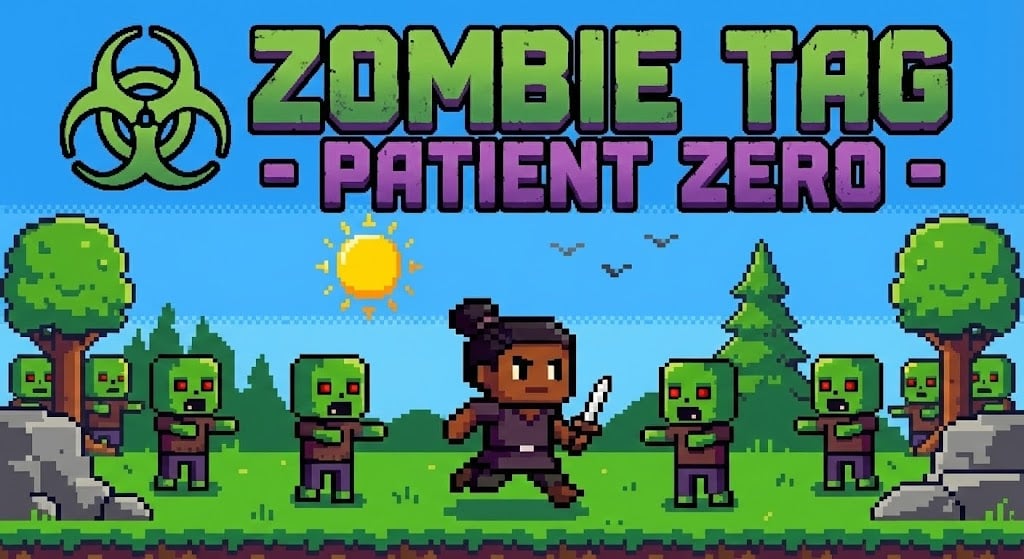
Zombie Tag is a fast-paced multiplayer game where players try to survive — or spread — a zombie outbreak.
 ### Controls
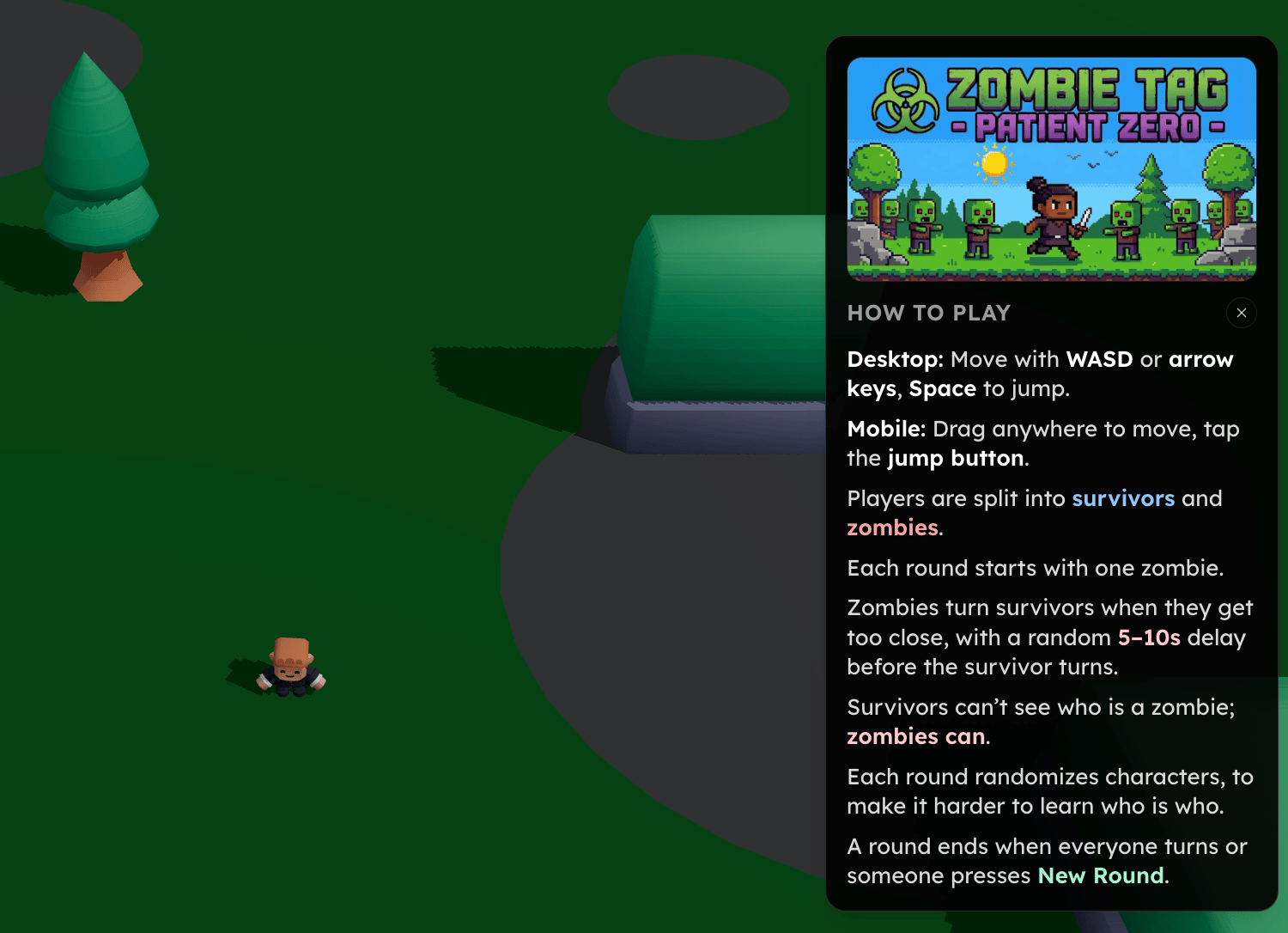
* **Desktop:** WASD or arrow keys to move, Space to jump
* **Mobile:** Drag anywhere to move, tap the jump button
### How It Works
* Players are split into **survivors** and **zombies**
* Each round starts with **one zombie**
* Zombies turn survivors when they get close, with a random **5–10 second delay**
* Survivors cannot see who the zombies are; zombies can
* Characters are randomized each round to prevent pattern-learning
A round ends when:
* Everyone turns into a zombie, or
* Someone selects **New Round**
### Controls
* **Desktop:** WASD or arrow keys to move, Space to jump
* **Mobile:** Drag anywhere to move, tap the jump button
### How It Works
* Players are split into **survivors** and **zombies**
* Each round starts with **one zombie**
* Zombies turn survivors when they get close, with a random **5–10 second delay**
* Survivors cannot see who the zombies are; zombies can
* Characters are randomized each round to prevent pattern-learning
A round ends when:
* Everyone turns into a zombie, or
* Someone selects **New Round**
 ## Whiteboard
* **Where it’s available:** full voice call view → Games\
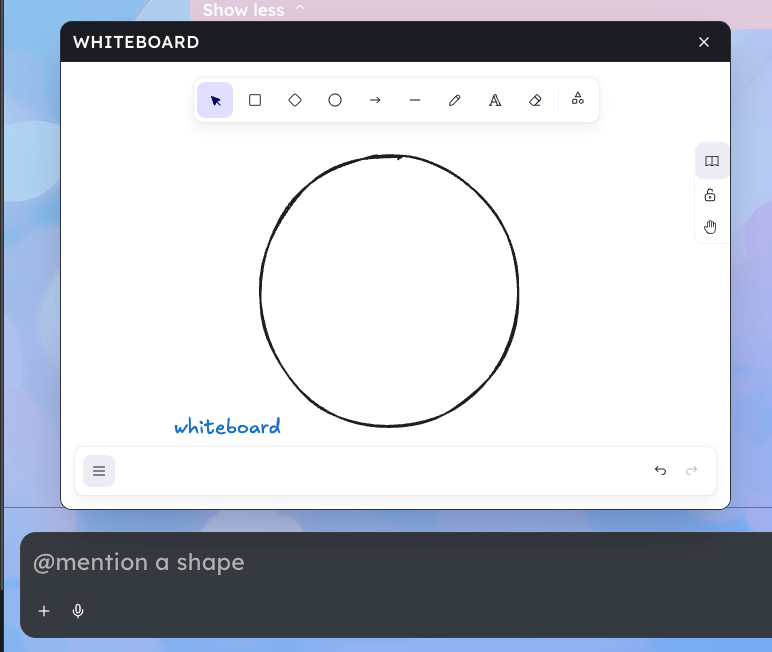
Draw together or solo while in a voice call!
You can pop out the whiteboard for picture-in-picture action by clicking the x in the corner. This allows you to still text chat while creating, without having to leave the whiteboard.
## Whiteboard
* **Where it’s available:** full voice call view → Games\
Draw together or solo while in a voice call!
You can pop out the whiteboard for picture-in-picture action by clicking the x in the corner. This allows you to still text chat while creating, without having to leave the whiteboard.
 **More: coming soon!**
[Return to App](https://shapes.inc)
**More: coming soon!**
[Return to App](https://shapes.inc)